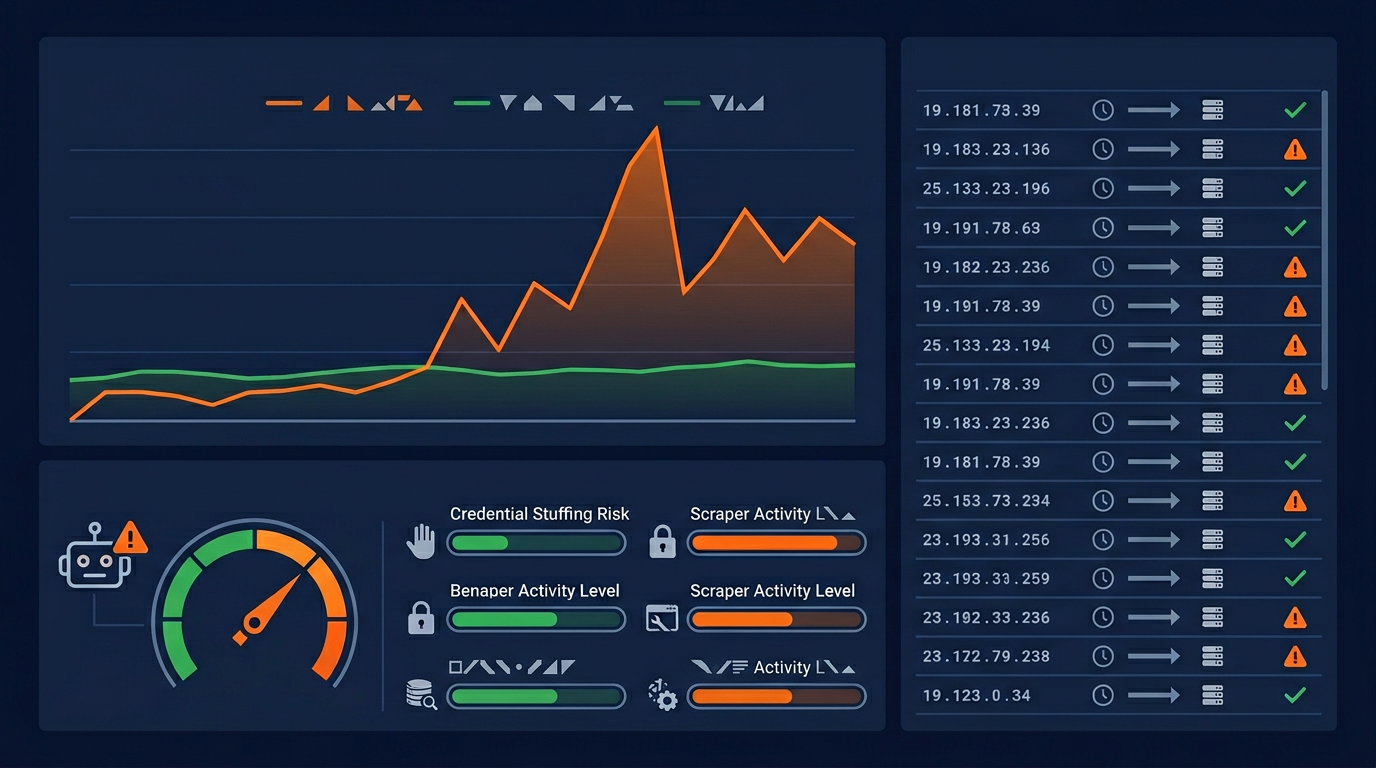

AI crawlers are visiting your website right now. GPTBot, ClaudeBot, PerplexityBot, Meta-ExternalAgent, and dozens of other AI bots are crawling websites constantly to collect data for AI models and AI search features. But how much traffic are they actually generating? And how do you monitor whether they are helping or hurting your website?
This guide shows you exactly how to identify, track, and analyze AI bot traffic using the tools you already have: Google Analytics, server access logs, and free monitoring tools. You will learn how to separate AI bot traffic from real human visitors, measure the server impact, and set up alerts for unusual activity.
First, check which AI bots your website currently allows. Use the AI crawler checker online tool to scan your robots.txt and see your full AI crawler access report.
How do I monitor AI bot traffic to my website?
Monitor AI bot traffic by reading your server access logs, because AI crawlers do not run the JavaScript that Google Analytics depends on. Filter the logs for known tokens (GPTBot, ClaudeBot, PerplexityBot, OAI-SearchBot), then verify the IPs against each operator's published ranges. The methods below go from quickest to most complete. For step-by-step log parsing see AI bot traffic in server logs; for ongoing alerts see AI crawler monitoring; and if a bot is overloading you, read AI crawler rate limiting.
grep -Ei "GPTBot|ClaudeBot|PerplexityBot|OAI-SearchBot" /var/log/nginx/access.log | awk '{print $1, $7}' | sort | uniq -c | sort -rn | headMethod 1: Server Access Logs (Most Reliable)
Server access logs are the most reliable way to monitor AI bot traffic because they record every single request to your server, including bot visits that Google Analytics cannot see.
Finding Your Server Logs
Server access logs are typically located in these paths depending on your hosting:
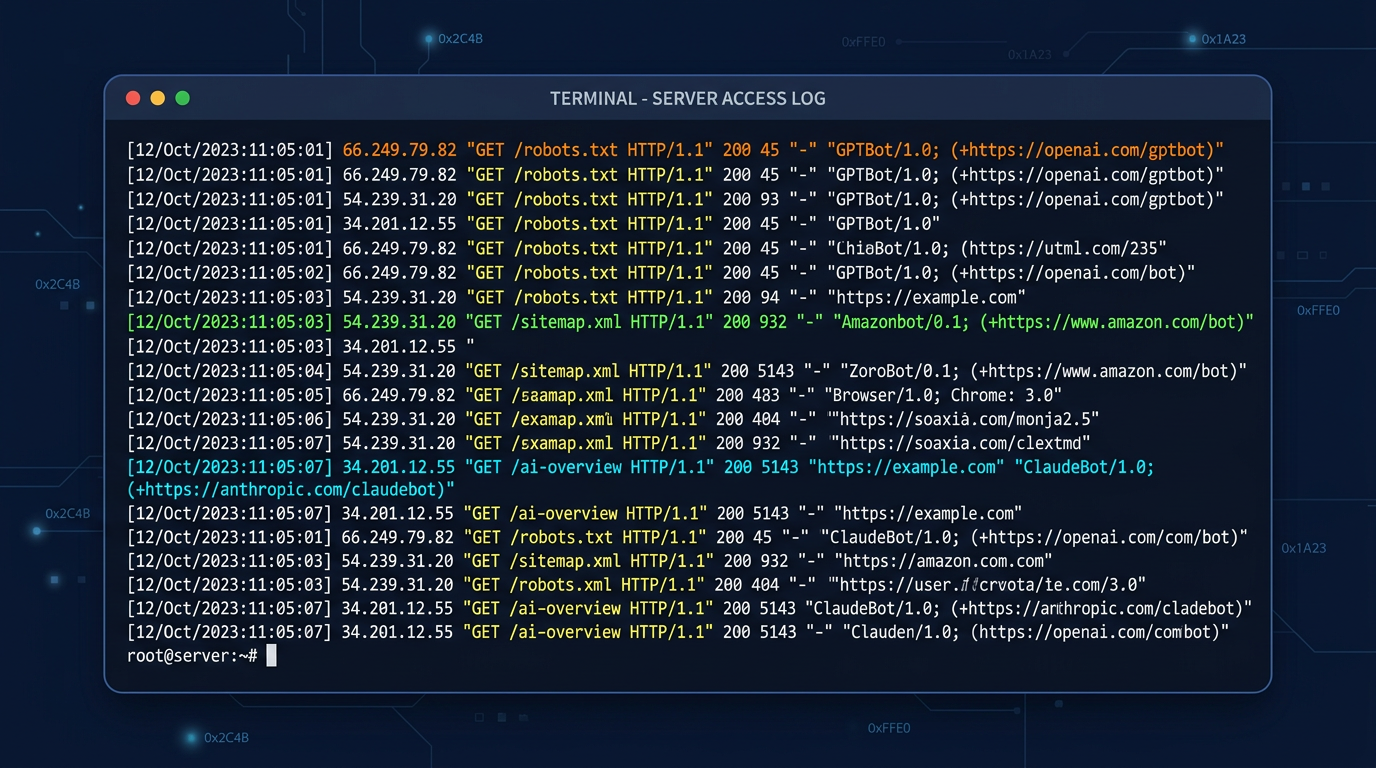
Identifying AI Bot User Agents
Use these commands to find AI bot traffic in your server logs:
Key AI Bot User Agent Strings
Here are the exact user agent strings to search for in your logs:
| Bot Name | User Agent Contains | Type |
|---|---|---|
| GPTBot | GPTBot/1.0 | Training |
| ChatGPT-User | ChatGPT-User | Search |
| OAI-SearchBot | OAI-SearchBot | Search |
| ClaudeBot | ClaudeBot/1.0 | Training |
| PerplexityBot | PerplexityBot | Search |
| ByteSpider | Bytespider | Aggressive |
| CCBot | CCBot/2.0 | Training |
| Meta-ExternalAgent | Meta-ExternalAgent | Training |
| Amazonbot | Amazonbot/0.1 | Multi-purpose |
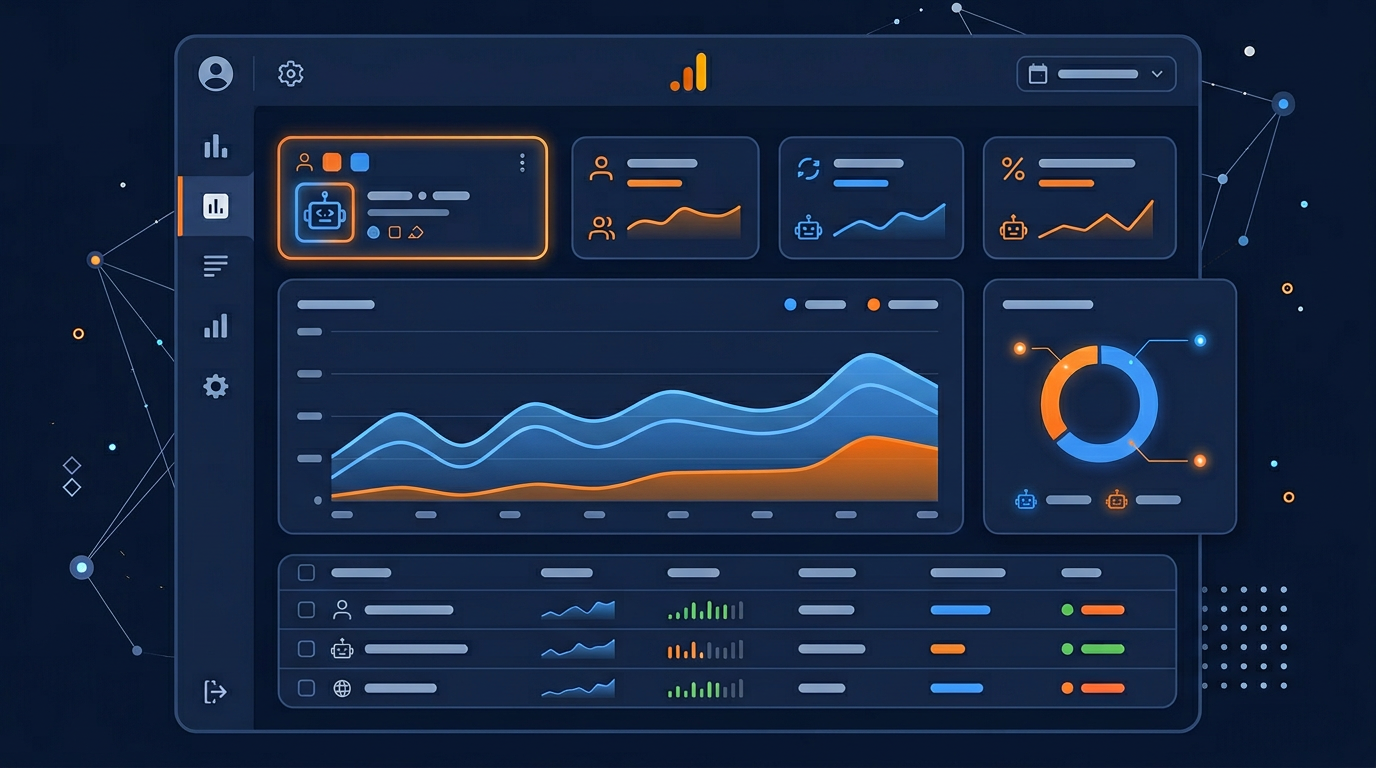
Method 2: Google Analytics 4 (GA4)
Google Analytics 4 automatically filters known bot traffic. However, some AI crawlers can still appear in your data, especially newer ones. Here is how to handle AI bot traffic in GA4:
Check if Bot Filtering is Enabled
In GA4, bot filtering is on by default. Verify this setting:
1. Go to Admin > Data Streams > Web
2. Click on your data stream
3. Go to Configure tag settings > Show all
4. Look for "Define internal traffic"
5. Ensure bot filtering is not accidentally overridden
Create a Custom Exploration for AI Referrals
Track traffic coming from AI search platforms with a custom exploration report:
Steps to create AI referral tracking:
1. Go to Explore > Blank exploration
2. Add dimension: Session source
3. Add metrics: Sessions, Users, Engagement rate
4. Add filter: Session source contains "openai" OR "perplexity" OR "anthropic" OR "chat.openai"
5. Save and schedule monthly reports
Identify Suspicious Bot-Like Traffic Patterns
AI bots that slip through GA4 filters often show these patterns:
0-second session duration: Bots typically load a page and leave instantly without engagement.
100% bounce rate from unknown sources: Sessions with no interaction and unknown referral source.
Unusual geographic distribution: High traffic from data center locations (Virginia, Oregon, Netherlands) rather than normal user regions.
Consistent crawl patterns: Same pages visited at regular intervals (every 6, 12, or 24 hours).
Method 3: Cloudflare Analytics
If you use Cloudflare, you have access to detailed bot traffic analytics built into the dashboard:
Cloudflare Bot Analytics Dashboard
Security > Bots: Shows verified bot traffic, including identified AI crawlers
Analytics > Traffic: Breakdown of human vs bot traffic with user agent details
Firewall Events: Shows blocked requests and which rules triggered
Cloudflare's bot management is particularly useful because it can identify AI crawlers even when they use unusual user agent strings. It cross-references IP addresses, request patterns, and behavioral signals to classify traffic accurately.
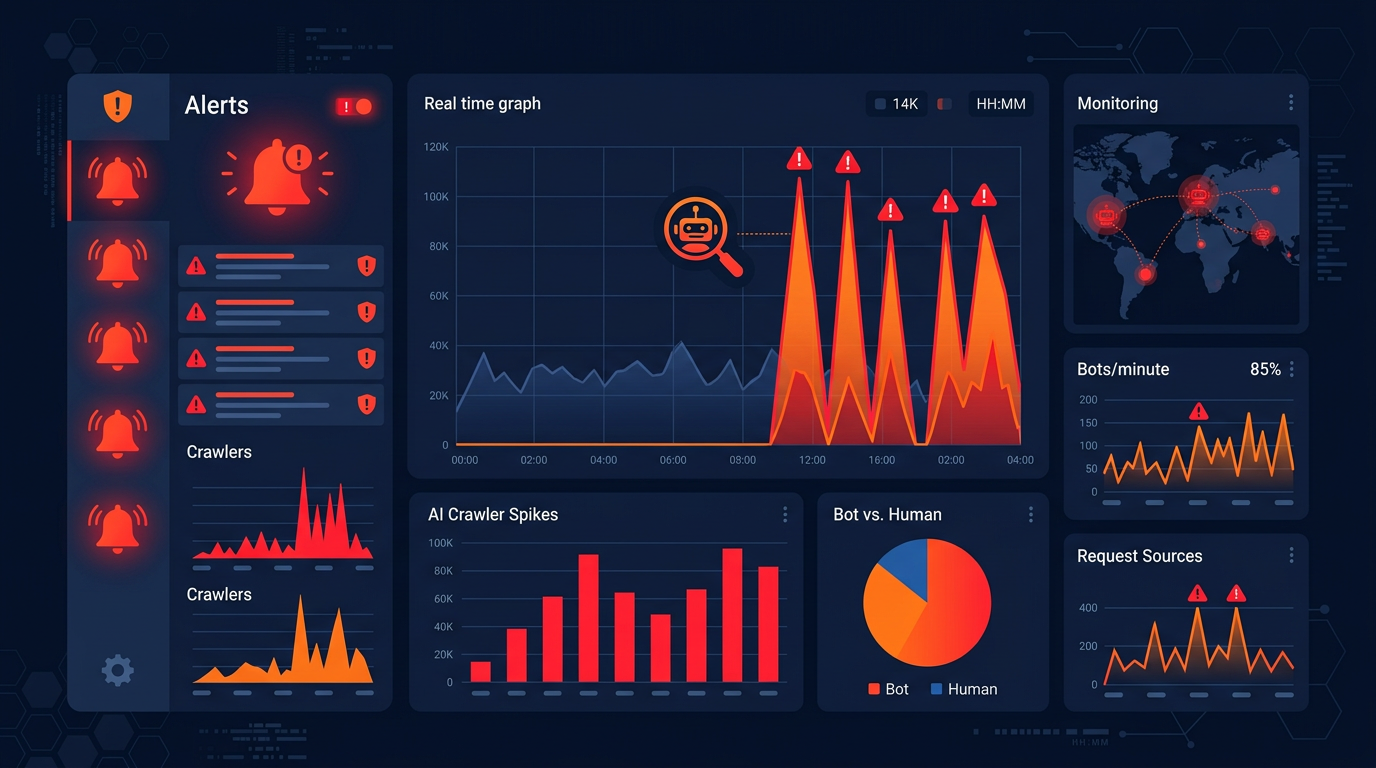
Setting Up AI Bot Traffic Alerts
Proactive monitoring with alerts helps you catch excessive AI crawling before it impacts your site performance. Here are practical alert setups:
Server-Level Alert Script
Create a simple bash script that runs daily and alerts you if AI bot traffic exceeds your threshold:
What to Do When Alerts Trigger
High Traffic from a Single Bot
If one bot is making an unusual number of requests, add a Crawl-delay directive or block it in robots.txt. Check if it is a legitimate crawler by verifying its user agent against official documentation.
Server Performance Degradation
If server response time increases during high AI bot activity, immediately implement rate limiting. Use your firewall to temporarily limit request rates from known AI bot IP ranges.
Unknown Bot User Agents
New AI crawlers appear regularly. If you see an unknown user agent making many requests, research it to determine if it is legitimate. Block it if you cannot verify its identity and purpose.
Creating Your Monthly AI Bot Report
We recommend creating a monthly report that tracks these key metrics:
Monthly AI Bot Traffic Report Template
SECTION 1: Traffic Volume
Total AI bot requests | Requests per bot | % of total traffic | Month-over-month change
SECTION 2: Server Impact
Average response time | Peak load hours | Bandwidth consumed by AI bots | Error rates from bots
SECTION 3: AI Referral Traffic
Visits from ChatGPT | Visits from Perplexity | AI Overview appearances | Total AI referral sessions
SECTION 4: Action Items
Bots to block or rate-limit | robots.txt changes needed | Server capacity concerns | New bots detected
Key Takeaways
Server logs are the most reliable source. GA4 filters most bot traffic, but server logs show every AI crawler visit. Start with log analysis for accurate data.
Track both bot traffic and AI referrals. Bot traffic shows server load; AI referrals show the traffic benefit of allowing AI search crawlers.
Set up proactive alerts. Do not wait for problems. Automated monitoring catches excessive crawling before it impacts your site performance.
Create monthly reports. Regular reporting helps you track trends and make data-driven decisions about AI crawler management.
Use multiple tools together. Combine server logs + GA4 + Cloudflare (if applicable) + the AI crawler checker free tool for a complete picture.
Start monitoring your AI bot traffic today. Use the web crawler tool free to check which AI bots your robots.txt currently allows, then review your server logs using the commands and techniques in this guide.