
Your robots.txt file is the front door to your website for AI crawlers. Every time GPTBot, ClaudeBot, PerplexityBot, or any other AI bot visits your site, the first thing it checks is your robots.txt. If you do not have one, or if it is not configured correctly, you have no control over which AI bots access your content. The good news is that creating a robots.txt file is simple, and this guide will walk you through every step.
Whether you are a complete beginner who has never touched a robots.txt file, or an experienced webmaster who wants to add AI-specific rules, this tutorial covers everything. We will start with the basics of what a robots.txt file is, then move to writing rules for specific AI bots, provide copy-paste templates for common scenarios, and finish with testing and verification steps.
Before we begin, check your current setup. Use the AI crawl checker to scan your website and see which AI bots can currently access your content. This gives you a clear starting point.
What is robots.txt and Why Does It Matter for AI?
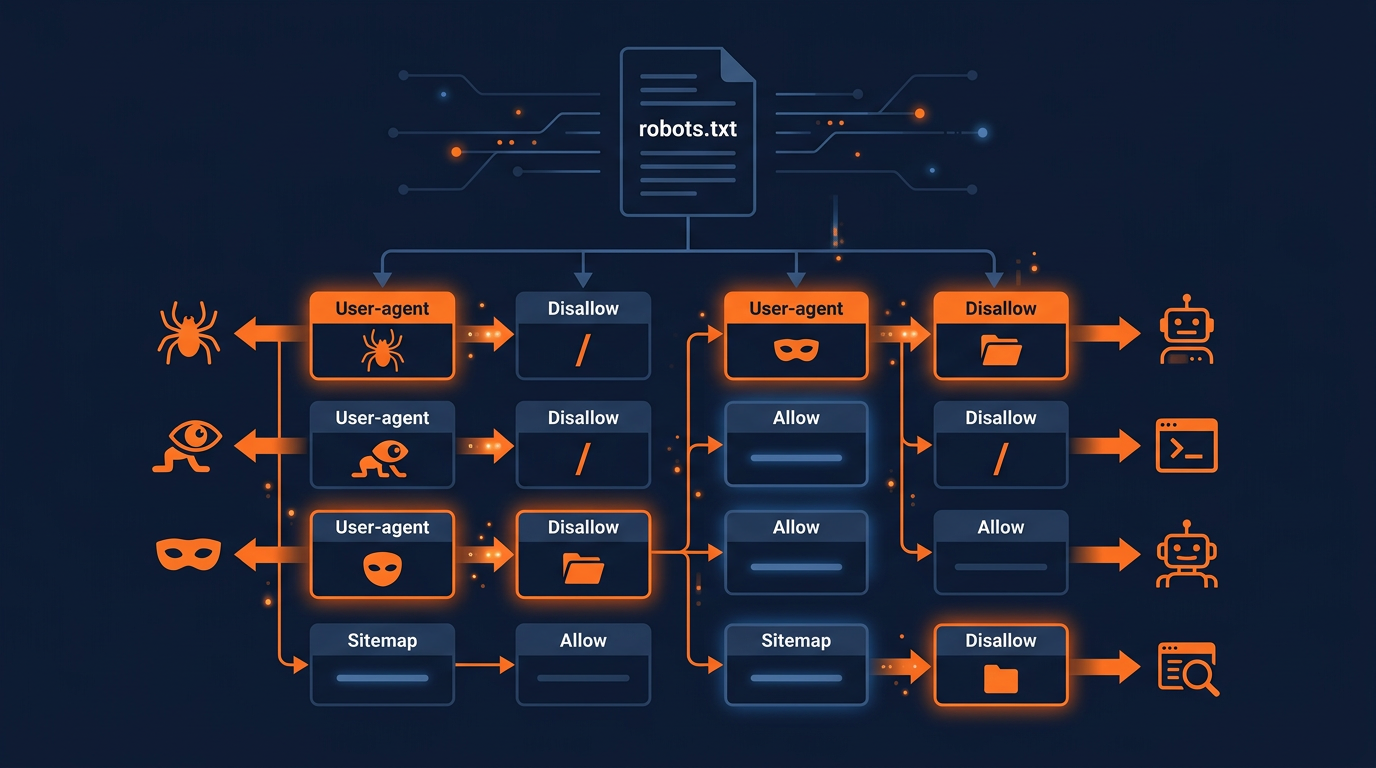
A robots.txt file is a simple text file that lives at the root of your website. When any web crawler visits your site, it first looks for this file at yoursite.com/robots.txt. The file contains rules that tell the crawler which parts of your site it can access and which parts it should skip.
The robots.txt standard (also called the Robots Exclusion Protocol) has been around since 1994. For decades, it was mainly used to manage search engine crawlers like Googlebot and Bingbot. But the explosion of AI crawlers in 2024 and 2025 changed the game completely. We now track 71 AI crawlers, and your robots.txt file is your primary tool for controlling them.
Here is why robots.txt matters more than ever in the AI era:
Content protection: Without proper robots.txt rules, AI companies can crawl your content and use it to train their models. Your articles, images, and data become training material for ChatGPT, Claude, and other AI systems.
Server performance: AI crawlers can be aggressive. Bots like ByteSpider sometimes send thousands of requests per hour, slowing down your server and affecting real visitors.
Selective access: You can allow AI search bots that drive traffic (like PerplexityBot) while blocking AI training bots that do not send visitors to your site.
AI visibility control: Your AI Visibility Score depends heavily on how your robots.txt is configured. Blocking too many bots can lower your visibility in AI search results.
The bottom line is that every website needs a well-configured robots.txt file. Without one, you are giving all AI crawlers unlimited access to your content by default.
Understanding robots.txt Syntax
Before you create your file, you need to understand the basic syntax. Robots.txt files use a very simple format with just a few directives. Here are the ones you will use most often:
Core Directives
User-agent: Specifies which crawler the following rules apply to. Use * for all crawlers, or a specific name like GPTBot for one bot.Disallow: Tells the crawler it cannot access the specified path. Disallow: / blocks the entire site.Allow: Overrides a Disallow rule for a specific path. Useful for allowing access to certain directories while blocking others.Sitemap: Points crawlers to your XML sitemap so they can find all your pages efficiently.Crawl-delay: Tells the crawler to wait a certain number of seconds between requests. Not all bots respect this. Learn more in our rate limiting guide.Here is a simple example that blocks GPTBot but allows everything else:
# Block GPTBot from accessing the site
User-agent: GPTBot
Disallow: /
# Allow all other crawlers
User-agent: *
Allow: /
# Sitemap location
Sitemap: https://yoursite.com/sitemap.xml
Important rules about robots.txt syntax:
Each User-agent block applies only to the bot named in that block.
Rules are case-sensitive for paths but not for User-agent names.
Lines starting with # are comments and are ignored by crawlers.
Blank lines separate different User-agent blocks.
The file must be plain text with UTF-8 encoding. Do not use HTML or rich text formatting.
Step-by-Step: Creating Your robots.txt File
Follow these steps to create your robots.txt file from scratch. The entire process takes about 10 to 15 minutes.
Step 1: Decide your AI bot strategy
Before writing any code, decide how you want to handle AI crawlers. There are three main strategies:
Strategy 1: Block all AI bots
Best for: Publishers, premium content sites, and anyone who wants to protect their content from AI training. This blocks all 71 AI crawlers we track.
Strategy 2: Selective access (recommended)
Best for: Most websites. Allow AI search bots that send you traffic (PerplexityBot, ChatGPT-User) while blocking AI training bots (GPTBot, CCBot, ByteSpider) that do not.
Strategy 3: Allow all AI bots
Best for: Sites that want maximum AI visibility and do not mind their content being used for AI training. This maximizes your chances of being cited in AI search results.
Most website owners in 2026 choose Strategy 2 (selective access). This gives you the best balance between protecting your content and being visible in AI search. You can refine your strategy later as AI search evolves.
Step 2: Open a text editor
Create a new file called robots.txt in any plain text editor. You can use Notepad (Windows), TextEdit (Mac), VS Code, Sublime Text, or any code editor. Do not use Microsoft Word or Google Docs, because these add hidden formatting that will break the file.
If you are using a CMS like WordPress, Shopify, or Squarespace, you may not need to create the file manually. Many CMS platforms have built-in robots.txt editors or plugins that let you edit the file from your dashboard. Check your CMS documentation for specifics.
Step 3: Write the search engine rules first
Always start with rules for traditional search engine crawlers. This makes sure Google, Bing, and other search engines can access your site properly:
# Search engine crawlers - full access
User-agent: Googlebot
Allow: /
User-agent: Bingbot
Allow: /
User-agent: Yandex
Allow: /
Step 4: Add your AI bot rules
Now add rules for the AI crawlers based on your chosen strategy. Here are the most important AI bots to include:
| Bot Name | Company | Purpose | Recommendation |
|---|---|---|---|
| GPTBot | OpenAI | AI model training | Block (unless you want training) |
| ChatGPT-User | OpenAI | ChatGPT live search | Allow (sends traffic) |
| ClaudeBot | Anthropic | AI training + search | Your choice |
| PerplexityBot | Perplexity AI | AI search | Allow (drives traffic) |
| Google-Extended | Gemini AI training | Your choice | |
| CCBot | Common Crawl | Open dataset / AI training | Block (feeds many AI models) |
| Bytespider | ByteDance | AI training (TikTok/Douyin) | Block (aggressive scraper) |
| Amazonbot | Amazon | Alexa AI / shopping | Your choice |
For a complete configuration with all 196+ bots, use the Robots.txt Generator tool. It lets you toggle each bot individually with a single click.
Step 5: Add the sitemap directive
At the end of your robots.txt file, add a Sitemap directive. This helps all crawlers find your pages more efficiently:
# Sitemap
Sitemap: https://yoursite.com/sitemap.xml
Replace yoursite.com with your actual domain name. If you have multiple sitemaps, you can add multiple Sitemap lines.
Step 6: Upload the file to your server
Save the file as robots.txt (all lowercase) and upload it to the root directory of your website. The file must be accessible at https://yoursite.com/robots.txt.
How you upload depends on your hosting setup:
Traditional hosting (cPanel): Use the File Manager to navigate to your public_html folder and upload the file there.
WordPress: Use a plugin like Yoast SEO, Rank Math, or All in One SEO. Go to the plugin settings and find the robots.txt editor section.
Shopify: Go to Settings > Custom Data > robots.txt.liquid to edit the file.
Static sites (Netlify, Vercel, Cloudflare): Place the robots.txt file in your public or static directory.
FTP/SFTP: Connect to your server and upload the file to the root web directory (usually public_html or www).
Step 7: Test and verify
After uploading, verify that your file is working correctly. Open your browser and navigate to https://yoursite.com/robots.txt. You should see the plain text content of your file. Then use check which AI bots can crawl your site to confirm each bot is being handled correctly.
Ready-to-Use Templates
Here are three complete templates you can copy and paste. Choose the one that matches your strategy and customize it for your domain.
Template 1: Block all AI bots (maximum protection)
# Search engines - full access
User-agent: Googlebot
Allow: /
User-agent: Bingbot
Allow: /
# Block all AI training bots
User-agent: GPTBot
Disallow: /
User-agent: ChatGPT-User
Disallow: /
User-agent: ClaudeBot
Disallow: /
User-agent: PerplexityBot
Disallow: /
User-agent: Google-Extended
Disallow: /
User-agent: CCBot
Disallow: /
User-agent: Bytespider
Disallow: /
# Default - allow all others
User-agent: *
Allow: /
Sitemap: https://yoursite.com/sitemap.xml
Template 2: Selective access (recommended)
# Search engines - full access
User-agent: Googlebot
Allow: /
User-agent: Bingbot
Allow: /
# AI search bots - allow (drive traffic)
User-agent: ChatGPT-User
Allow: /
User-agent: PerplexityBot
Allow: /
# AI training bots - block
User-agent: GPTBot
Disallow: /
User-agent: CCBot
Disallow: /
User-agent: Bytespider
Disallow: /
User-agent: Google-Extended
Disallow: /
# Default - allow all others
User-agent: *
Allow: /
Sitemap: https://yoursite.com/sitemap.xml
Template 3: Maximum AI visibility
# Allow all crawlers full access
User-agent: *
Allow: /
# Block only aggressive scrapers
User-agent: Bytespider
Disallow: /
Sitemap: https://yoursite.com/sitemap.xml

Common Mistakes to Avoid
Many website owners make these mistakes when creating their robots.txt file. Avoiding them will save you time and prevent issues:
Mistake 1: Blocking Googlebot by accident
If you add User-agent: * / Disallow: / to block everything, you will also block Googlebot. Always add specific Googlebot rules above the wildcard block, or use specific User-agent names for each AI bot you want to block.
Mistake 2: Wrong file location
The robots.txt file must be at the root of your domain (yoursite.com/robots.txt). Placing it in a subfolder (yoursite.com/pages/robots.txt) will not work. Crawlers only check the root location.
Mistake 3: Using rich text formatting
If you create the file in Microsoft Word or Google Docs, hidden formatting characters can break the file. Always use a plain text editor.
Mistake 4: Forgetting to include new AI bots
New AI crawlers appear regularly. A robots.txt file from 2024 may not include bots like Applebot-Extended, OAI-SearchBot, or newer crawlers. Review and update your file every few months.
Mistake 5: Thinking robots.txt is enough for security
Robots.txt is a voluntary standard. Well-behaved bots follow it, but malicious scrapers may ignore it. For stronger protection, combine robots.txt with server-side rate limiting and meta robots tags. Read our guide on blocking AI crawlers for a complete protection strategy.
Advanced robots.txt Techniques
Once you have the basics down, you can use these advanced techniques to fine-tune your AI crawler management:
Path-specific rules
Instead of blocking an AI bot from your entire site, you can block access to specific directories while allowing others:
# Allow GPTBot to access blog but block premium content
User-agent: GPTBot
Allow: /blog/
Allow: /about/
Disallow: /premium/
Disallow: /members-only/
Disallow: /api/
This approach lets you get the benefits of AI visibility for your public content while protecting your premium or private pages.
Wildcard patterns
Use the * wildcard to match patterns in URLs. Use $ to match the end of a URL:
# Block access to all PDF files
User-agent: GPTBot
Disallow: /*.pdf$
# Block access to pages with query parameters
User-agent: CCBot
Disallow: /*?*
Combine with llms.txt
For maximum AI visibility, create an llms.txt file alongside your robots.txt. While robots.txt controls access, llms.txt provides AI models with structured information about your site, including what topics you cover, your key pages, and how you want to be cited. Together, these two files give you comprehensive control over how AI systems interact with your website.
Your robots.txt handles the "who can visit" question, while llms.txt handles the "what should AI know about us" question. Both are important for a complete AI optimization strategy.
Testing and Verification
After creating and uploading your robots.txt file, always test it. Here are the best ways to verify that everything is working:
Browser check. Open https://yoursite.com/robots.txt in your browser. You should see the plain text content of your file with correct formatting.
AI Crawler Check. Use the AI crawl checker to verify that each AI bot is blocked or allowed according to your rules. The tool scans your robots.txt and shows the status for each known AI crawler.
Google Search Console. Use the robots.txt Tester in Google Search Console to verify that Googlebot can still access your important pages.
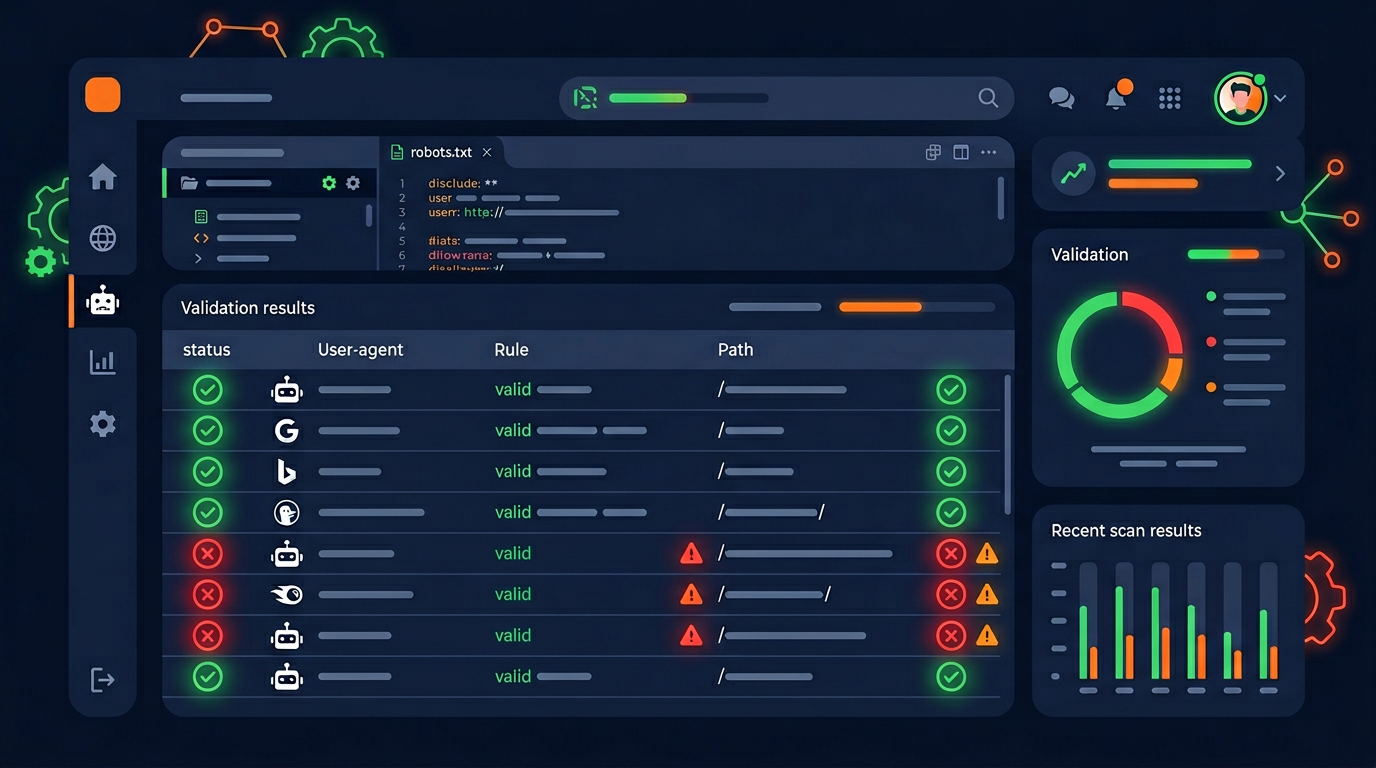
Robots.txt Validator. Use the Robots.txt Validator tool to check for syntax errors and potential issues in your file.
It is a good practice to check your robots.txt file regularly, at least once a month. New AI crawlers appear frequently, and your strategy may need to evolve as the AI landscape changes.
Skip the Manual Work: Use the Robots.txt Generator
If writing robots.txt rules manually seems complicated, the Robots.txt Generator does all the work for you. It includes all 196 bots we track, AI crawlers among them, and lets you toggle each one individually, and generates a complete, properly formatted robots.txt file ready to download and upload to your server.
The generator also includes preset templates for common scenarios, so you can get started in seconds without knowing any robots.txt syntax. It is the fastest way to create a comprehensive robots.txt file that covers every known AI crawler.
Create Your robots.txt in 30 Seconds
Use our free generator with 196 bot presets and one-click templates.
Open Robots.txt GeneratorOngoing Monitoring and Maintenance
Creating your robots.txt file is not a one-time task. The AI crawler landscape changes rapidly. Here is how to keep your robots.txt file effective over time:
Monthly reviews: Check your server logs for new bot user agents. New AI crawlers appear every month, and you may need to add rules for them.
Quarterly strategy review: Reassess whether your block/allow strategy still matches your business goals. As AI search grows, you may want to allow more bots for visibility.
Track your AI Visibility Score: Use the AI crawl checker regularly to monitor your AI Visibility Score. Changes in your robots.txt directly affect this score.
Stay informed: Follow AI news and updates. When new AI platforms launch (like Apple Intelligence in 2025), they bring new crawlers that you need to manage.
Key Takeaways
Every website needs a robots.txt file to control AI crawler access.
The file uses simple syntax with User-agent, Allow, and Disallow directives.
Choose a strategy: block all AI bots, allow selectively, or allow all.
Always test after uploading. Use browser check, AI crawler scan, and Google Search Console.
Review and update your robots.txt monthly as new AI crawlers appear.
Combine with llms.txt for a complete AI optimization strategy.
Use the Robots.txt Generator for the fastest, most comprehensive setup.
Check Your Current AI Bot Access
See which of 196+ AI crawlers can currently reach your website content.
Scan Your Website Now