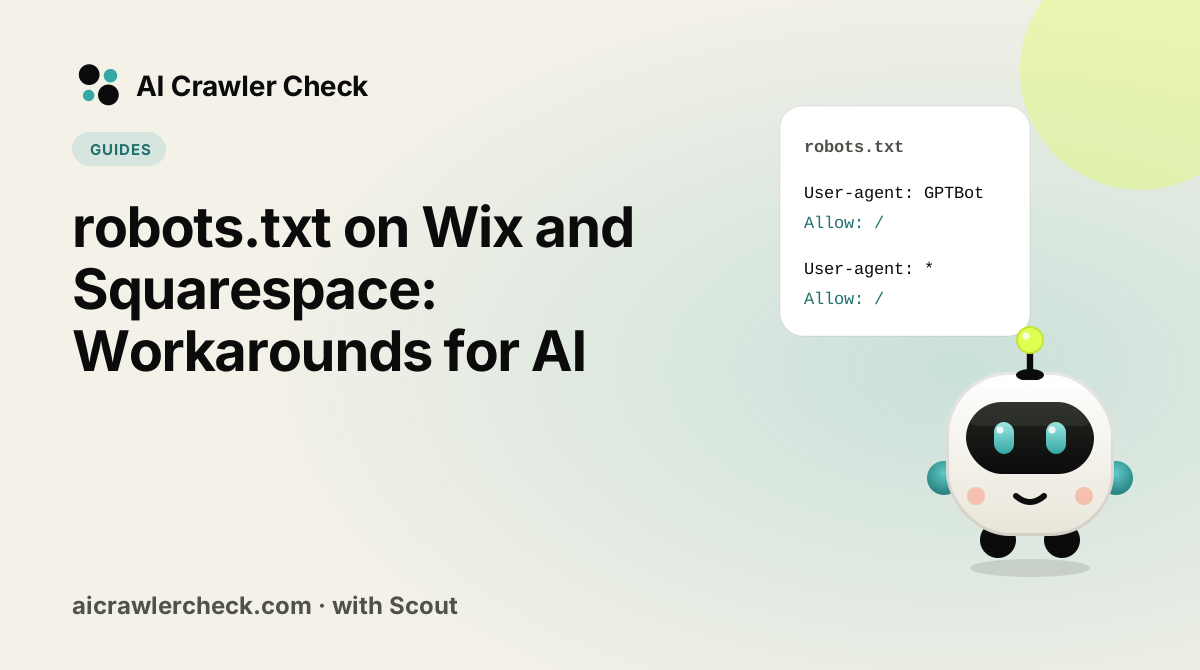
In this guide you will learn how to manage AI access on Wix and Squarespace. We will keep it practical, with clear steps, visual breakdowns, and specific actions you can take today. The first step in any AI visibility project is to run a crawlability checker for AI search on your website so you know exactly where you stand against the 265 bots we track across 8 categories.
Key Takeaways
- robots.txt on Wix and Squarespace: Workarounds for AI is a practical, repeatable process, not a one-time fix.
- Most AI visibility problems trace back to access, not content.
- You can verify every change with the AI bot access checker and the robots.txt check.
- Document your approach so the whole team applies it consistently.
Working With a Platform That Owns the File
Find out what is actually serving the file
Work out whether the robots.txt for a Wix or Squarespace site comes from the platform, a plugin, the CDN or a static file before editing anything.
Establish a single owner and stop editing elsewhere
Pick one place where the rules for a Wix or Squarespace site are edited and remove or lock every other place that can overwrite them.
Record the served baseline from the live domain
Run an AI crawl checker against the public URL, not the editor preview. On managed platforms these differ often enough that the preview should never be trusted.
Make the change through the owning mechanism
For robots.txt on Wix and Squarespace, start with robots.txt creator.
Verify at the custom domain, and again after any theme or platform update
Test the live custom domain for a Wix or Squarespace site, not the platform subdomain, and repeat after every theme or platform update.
The Wix and Squarespace Editing Model, and Why It Confuses People
Wix and Squarespace are closed hosting environments where robots.txt is partly managed for you. The useful question is therefore not what the ideal file looks like but what you are actually permitted to change, because a substantial part of the file is not yours to control.
This also shifts where the real risk sits. On these platforms the more common cause of a crawler seeing less than a browser is client-side rendering, not a Disallow rule, so time spent perfecting a file you only partly own can miss the actual problem entirely.
Four Wix and Squarespace Specifics That Change the Outcome
Editing is limited, and limited differently on each
Each platform exposes a different subset of robots.txt control through its own settings interface, and neither hands you full ownership of the file. Some rules are fixed by the host, some are editable, and the boundary is not always documented clearly. Establish what is editable on your specific plan before planning changes, because a policy that requires rules you cannot add is not a policy.
System paths are managed by the platform
Internal platform routes, asset paths and infrastructure endpoints are handled by the host and generally should be left alone. Attempting to manage them yourself creates conflicts with rules the platform also writes, and the resulting file can behave unpredictably after a platform update. Confine your changes to paths that belong to your content.
Client-side rendering is the larger risk here
Both platforms lean heavily on JavaScript rendering, which means a crawler that does not execute scripts can receive far less than a visitor sees. That gap is usually a bigger practical problem than any robots.txt rule, and it does not show up in a robots.txt check at all. Fetch a page as raw HTML and compare it with the rendered view before concluding your access is fine.
Verify at the live domain, never in the editor
The editor preview does not reflect the published file, and on these platforms the difference is common enough to be the default assumption. Always request robots.txt at the real public URL after publishing, including at your attached custom domain rather than only the platform subdomain.
The Wix and Squarespace Error Worth Auditing For
Optimising the file while the content is invisible to bots
On a closed platform it is tempting to spend the available effort on the one thing that looks configurable. Meanwhile the pages themselves may be delivering almost nothing without JavaScript, so no robots.txt change can help. Checking the raw HTML first tells you whether the file is even the relevant variable, and on Wix and Squarespace it frequently is not.
How to Tell If Your Wix and Squarespace Setup Is Working
The check that matters here: Fetch one important page as raw HTML with no JavaScript execution and count how much of your actual content is present. Do that before touching robots.txt at all.
Where to Go From Here
Wix and Squarespace is one piece of a larger picture. The AI bot directory documents every crawler we track with its operator, purpose and safety rating, and the batch checker audits many sites in one pass if you manage a portfolio.
Platform defaults change with every theme and plugin update. Re-run the robots.txt check after any migration, and verify end to end with an AI crawl checker.
Your Wix and Squarespace Action Checklist
Applied to robots.txt on Wix and Squarespace, it looks like this:
- □Identify whether your platform generates robots.txt dynamically, which overrides any static file you upload.
- □Check for an SEO plugin writing its own rules, a frequent source of inherited blocks.
- □Apply the platform-specific pattern from this guide rather than a generic template.
- □Validate the published file at your live domain, not in the editor preview.
- □Re-check after the next theme or plugin update, since these commonly reset the file.