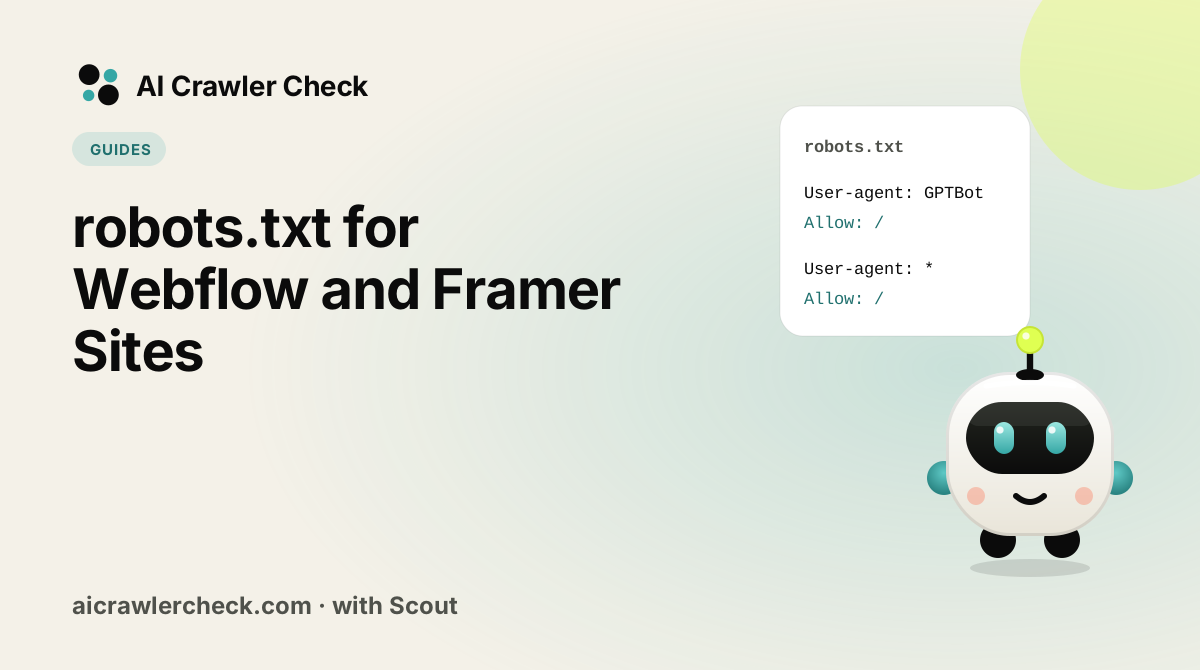
In this guide you will learn how to set AI crawler rules on Webflow and Framer. We will keep it practical, with clear steps, visual breakdowns, and specific actions you can take today. The first step in any AI visibility project is to run an LLM crawler checker on your website so you know exactly where you stand against the 265 bots we track across 8 categories.
Key Takeaways
- robots.txt for Webflow and Framer Sites is a practical, repeatable process, not a one-time fix.
- Most AI visibility problems trace back to access, not content.
- You can verify every change with the quick AI crawlability check and the robots.txt check.
- Document your approach so the whole team applies it consistently.
Working With a Platform That Owns the File
Find out what is actually serving the file
Work out whether the robots.txt for a Webflow or Framer site comes from the platform, a plugin, the CDN or a static file before editing anything.
Establish a single owner and stop editing elsewhere
Pick one place where the rules for a Webflow or Framer site are edited and remove or lock every other place that can overwrite them.
Record the served baseline from the live domain
Save the robots.txt and headers that a Webflow or Framer site serves today as the baseline for every later comparison.
Make the change through the owning mechanism
Generate the intended rules with a robots.txt file generator, then apply them through whichever mechanism you established as the owner, and publish if the platform requires a separate publish step.
Verify at the custom domain, and again after any theme or platform update
Confirm with a robot checker at the domain your audience actually uses. Platform updates and theme changes silently discard customisations, so this check belongs in your release routine.
What Makes robots.txt Different on Webflow and Framer
Webflow and Framer publish static output, which is good for crawlers, but manage robots.txt through project settings rather than as a file in a repository. They also both provide a default staging subdomain, and those staging domains are very frequently left fully crawlable, creating a complete duplicate of a site competing with its own production version.
The publishing model adds a second trap. Changing a setting is not the same as publishing it, so the rules can be correct in the project and stale on the live site, with nothing to indicate the mismatch.
Four Webflow and Framer Specifics That Change the Outcome
Rules live in project settings, not in a file you upload
Both platforms provide a settings field where robots.txt content is entered, and the platform serves it. There is no file to place at the root, so instructions written for conventional hosting do not translate directly. Knowing where the field is removes most of the confusion, and it also means the rules are versioned with the project rather than with your content.
Staging subdomains leak entire duplicate sites
The default platform subdomain is often indexable, which means a full copy of your site exists at another address competing with production for the same queries. This is one of the most common and most damaging oversights on design-first platforms, and it is invisible unless you specifically check the staging address. Block crawling on the staging domain and confirm it is not indexed.
Nothing applies until you publish
Editing the robots.txt setting without republishing leaves the previous file live indefinitely. Because the setting shows your new value, everything looks correct in the interface while the served file is unchanged. Publish, then verify at the public URL, and treat the interface as intent rather than state.
Check the custom domain specifically
Rules and behaviour can differ between the platform subdomain and an attached custom domain, particularly when a proxy or redirect sits in front. Verifying only the platform address can pass while the domain your audience actually uses serves something different. Test the custom domain, since that is the one that matters.
The Mistake That Costs Webflow and Framer Most
Leaving the staging subdomain crawlable
The characteristic failure on these platforms is a fully indexable staging copy of the site living at the default platform subdomain. It duplicates every page, competes for every query, and splits whatever authority the real site has earned. Nothing about the production site looks wrong, so the cause is rarely suspected. Checking the staging address is a thirty second task that resolves a problem people spend months attributing to content.
How to Verify This Changed Anything for Webflow and Framer
The check that matters here: Request robots.txt at your custom domain and at the platform staging subdomain, then search for the staging address to confirm it is not indexed. The second check finds the expensive problem.
Where to Go From Here
Webflow and Framer is one piece of a larger picture. The AI crawler directory documents every crawler we track with its operator, purpose and safety rating, and the batch URL checker audits many sites in one pass if you manage a portfolio.
Platform defaults change with every theme and plugin update. Re-run the robots txt validator after any migration, and verify end to end with an AI crawl checker.
Your Webflow and Framer Action Checklist
Applied to robots.txt for Webflow and Framer Sites, it looks like this:
- □Identify whether your platform generates robots.txt dynamically, which overrides any static file you upload.
- □Check for an SEO plugin writing its own rules, a frequent source of inherited blocks.
- □Apply the platform-specific pattern from this guide rather than a generic template.
- □Validate the published file at your live domain, not in the editor preview.
- □Re-check after the next theme or plugin update, since these commonly reset the file.